

Upload records guide
HOW IT WORKS
Apple Watch / Apple Health
On your iPhone, open RQ and go to More > Connect devices > Health. Connect Health and allow access before uploading your Apple Watch runs.
FOLLOW THESE STEPS
Complete the upload path
-
01
Open RQ on your iPhone and tap the top-right ellipsis.
Tap the three dots to open More. First make sure your completed Apple Watch run is saved in the Health app on this iPhone.
-
02
Choose Connect devices, then Health under Services.
In More, tap Connect devices. On the next screen, find Health with the red heart icon under Services.
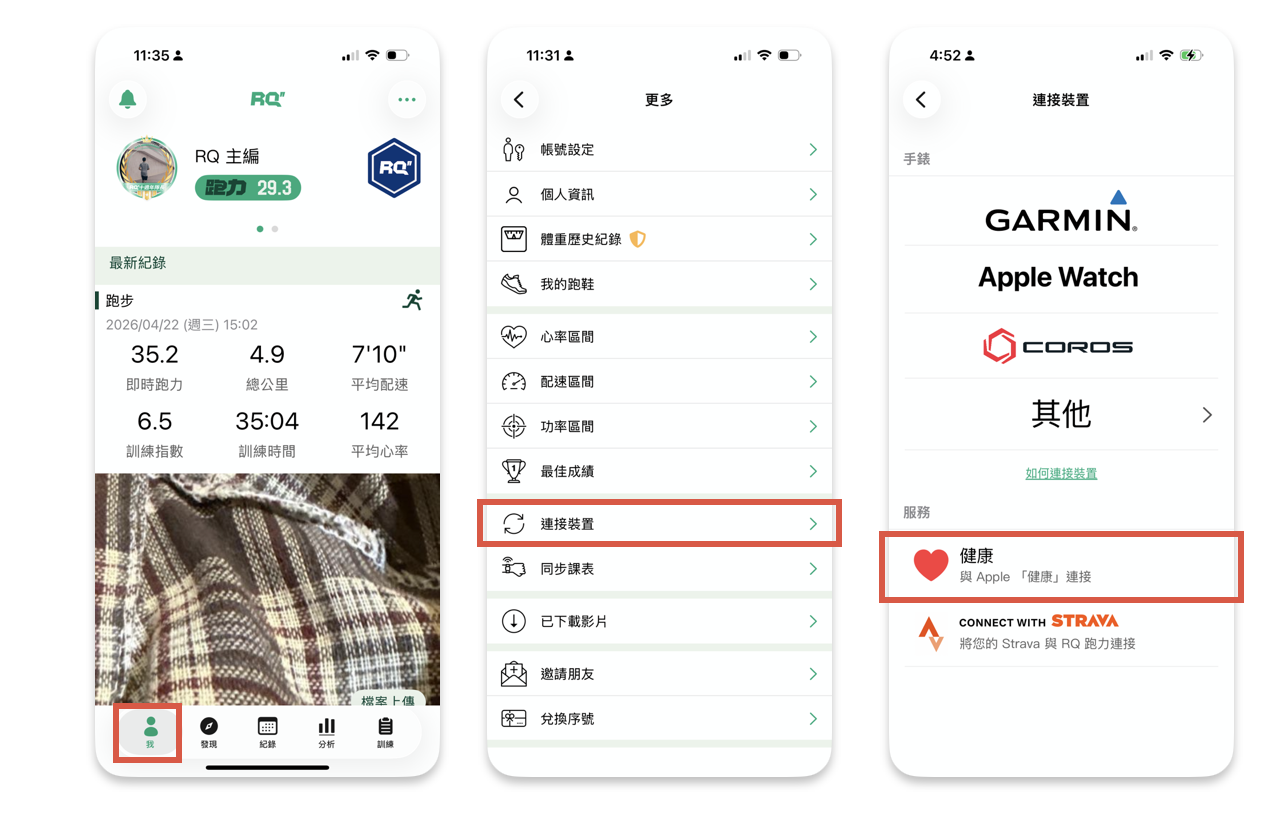
Screenshots from the RQ manual (Traditional Chinese). Tap to enlarge; labels may vary by app version. -
03
Tap Connect and allow Health data access.
Tap Connect at the bottom of the Health screen. In the iOS permission screen, enable all requested Health data permissions, including workouts and related data, then confirm.
-
04
Open the record list and upload unchecked records.
Return to Connect devices and open Apple Watch or Health. Tap Upload all unchecked records at the top of the list. To upload only one record, tap that record and choose Re-upload.
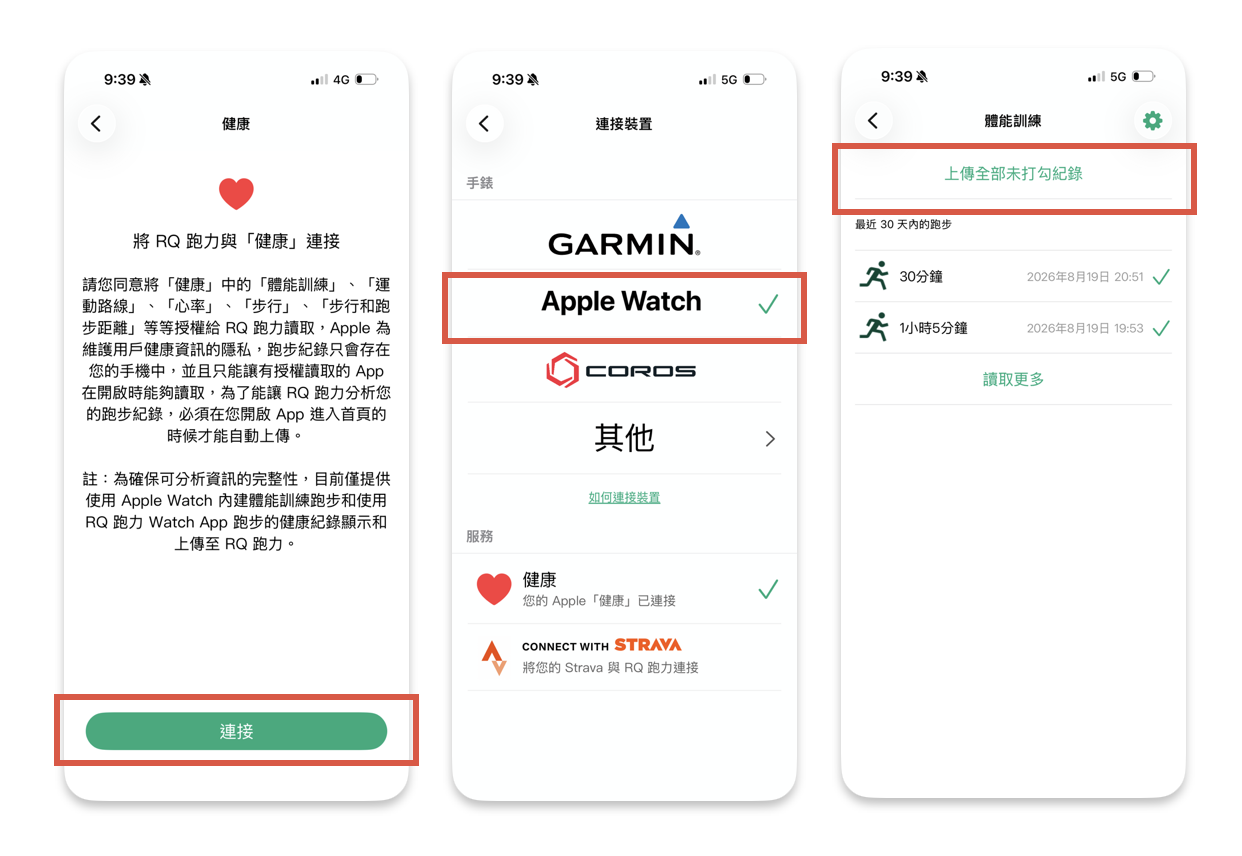
Screenshots from the RQ manual (Traditional Chinese). Tap to enlarge; labels may vary by app version. -
05
Check your RQ calendar.
Open your RQ calendar and check that the Apple Health record has arrived.
Continue in the RQ iOS app
Already have RQ? Open it on your iPhone and follow the steps above. If not, download it from the App Store.