

Upload records guide
HOW IT WORKS
COROS
Authorize COROS once, then let RQ receive new running records after the COROS app syncs them.
Choose how to connect
Use either the RQ app or the website; you do not need to connect twice.
Using the RQ app
In RQ, tap the top-right More button (...) > Connect devices > COROS, then follow the connection prompts.
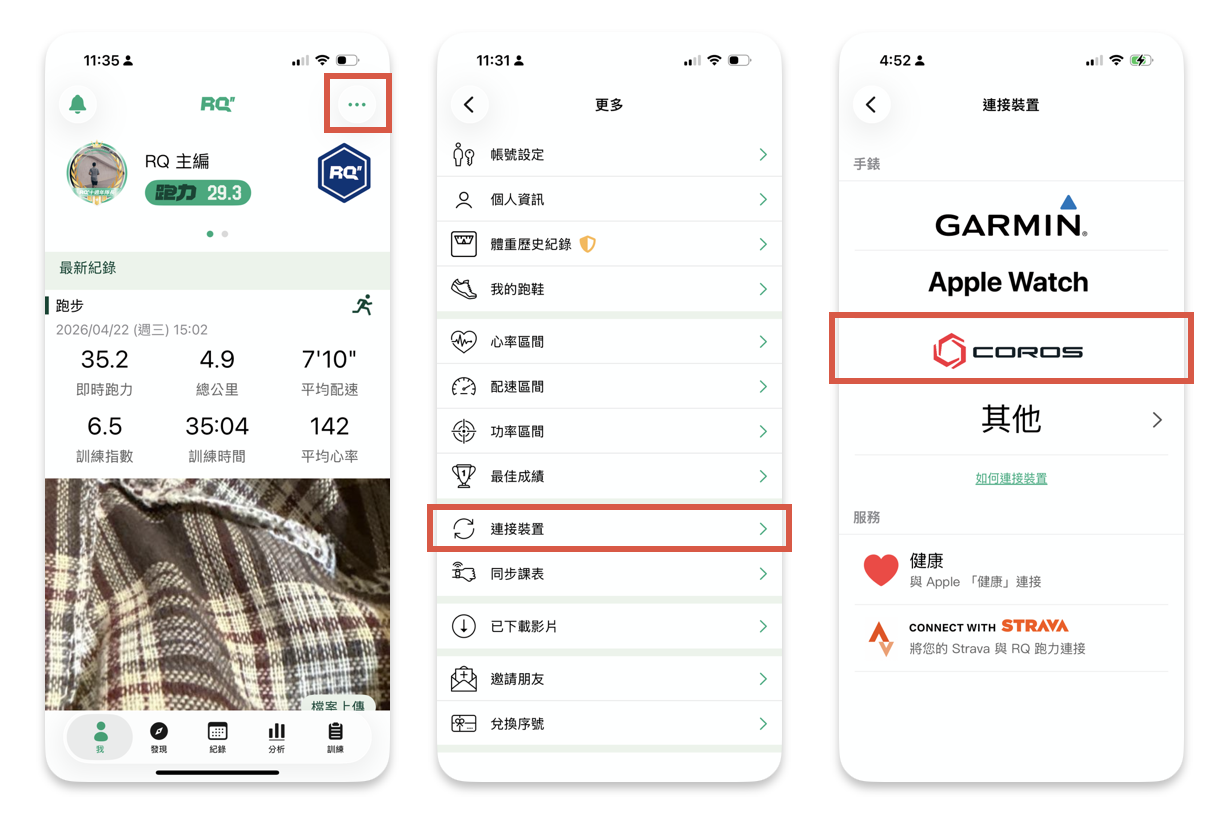
Using the RQ website
Open Upload records on the RQ website. Under COROS, select Start AutoSync.
FOLLOW THESE STEPS
Complete the upload path
-
01
Sign in to COROS and approve access.
Use the COROS account that holds your watch activities. Sign in on the authorization page and allow RQ to receive your activity records.
-
02
Return to RQ and check the connection.
Return to RQ and confirm COROS is connected. On the website, the COROS section should show Enabled.
-
03
Sync a new run in the COROS app.
After the COROS app finishes syncing, RQ can receive the new running record.
Continue in RQ
The current upload page will show the available action for your account.